
Overview
What is Audit Log?
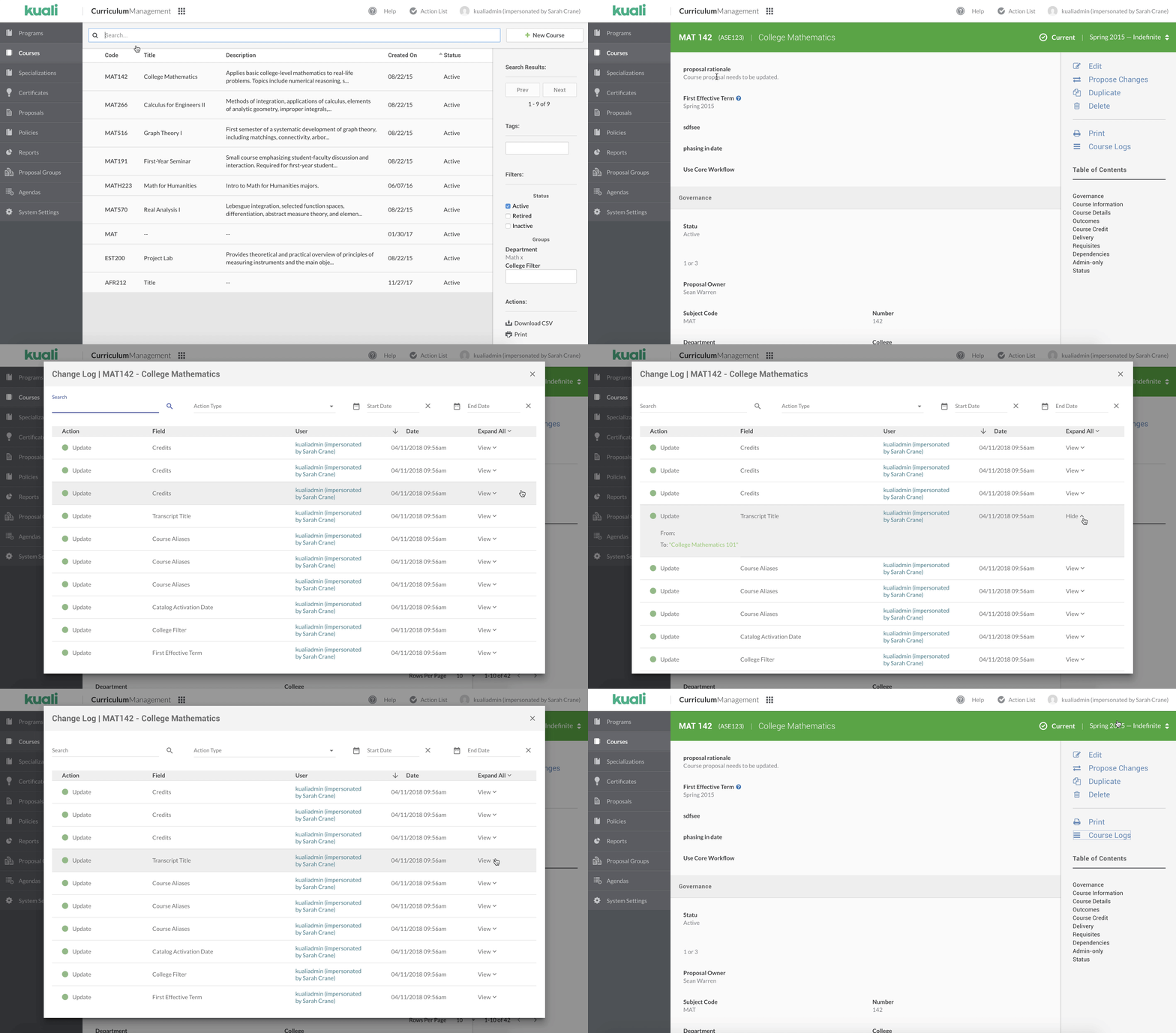
Audit Log enables users to analyze changes that have taken place to a specific item (e.g., course, program, etc.) including:
- Action taken (item was created, edited, updated, etc.)
- Form field the action was taken on, if applicable (e.g., Subject Code or Description)
- User who completed the action
- Date and time when the action occurred
Users are able to see a distinction between what existed before and the change that occurred.
Will any data from Change Feed be affected by moving to Audit Log?
No. All data currently displayed in Change Feed will be displayed and available in Audit Log with the additional capability to search, filter and select date ranges for the data.
- Please note: Data logged in Change Feed will continue to appear in the format it was previously displayed in (e.g., diffing will not change, course IDs will remain, etc.). However, all new changes logged after the transition to Audit Log will appear with improved diffing.
Which gadgets are currently supported?
Please note: If you have questions about which gadgets your configurations are currently using, please submit a support ticket.
The following gadgets will displaying detailed diffing when a change occurs in the field:
- Activities
- Alias
- Changes
- Checkbox
- Checkboxes
- Course Multiselect
- Course Typeahead
- Credits
- Date Dropdown
- Date Picker
- Double Text
- Dropdown
- Dependencies
- File Upload
- Groups Multiselect
- Groups Typeahead
- Inherit From Typeahead
- Inheritance
- Item Multiselect
- Mimic Text
- Omega Rules
- Options Checkboxes
- Options Dropdown
- Options Multiselect
- Options Radios
- Options Typeahead
- Outcomes
- Proposal Owner
- Program Typeahead
- Radios
- Rich Text
- Status
- Subject Code Builder
- Table
- Tags
- Text
- Text Area
- Terms Picker
- User Multiselect
- User Typeahead
Which gadgets are not currently supported?
Please note: If you have questions about which gadgets your configurations are currently using, please submit a support ticket.
Unsupported gadgets will display a change entry in Audit Log, but will not display transformed details of the change made. The following gadgets are currently unsupported:
- Course Rules
- Crosslistings
- Foreign Courses
- JACS
- New Program Rules
- Percentage List
- Program Rules
- Stage Credit Limit
- UK Assessment
Using Audit Log
How do I access Audit Log?
- Navigate to a specific item record (e.g. course, program, etc.).
- Click Audit Log in the right panel.
- Click on the header of each column to sort the view.
- Please note: By default, entries will be sorted by most recent change appearing at the top.
- Click the X icon in the top-right corner OR click out of the modal to return to the previous screen.
How do I view a specific entry in detail?
- Click on the View arrow in line with the entry to expand the display.
- Click on the View arrow gain to collapse the entry.
How do I view more entries on each page?
By default, 10 entries will be displayed on each page. To increase the number of entries displayed:
- Click the arrow icon in line with Rows Per Page.
- Select the desired number of rows to display.
- Please note: Up to 20 rows may be displayed on one page.
How do I expand all entries on a page?
- Click Expand All in the top-right of the entry table.
- To undo, click Expand All again to collapse.
How do I search the entries?
- Click in the Search field.
- Enter search criteria.
- Please note: Search currently supports searching on field title, user name, and action type (e.g., update, delete, etc.).
Can I filter the entries?
Audit Log entries can be filtered by the type of action that occurred (e.g., an item was updated, deleted, etc.).
- Please note: Entries may only be sorted by one action type at a time.
To filter the entries:
- Click in the Action Type dropdown.
- Select the appropriate action from the list of the following:
- Acknowledge
- Admin Approve
- Approve
- Clone
- Create
- Delete
- File Upload
- Inactivate
- Propose Changes
- Reject
- Request Addendum
- Resubmit
- Send Back
- Shared
- Submit for Approval
- Update
- Withdraw
- To select all actions, click the blank entry at the top of the Action Type dropdown.
To undo filtering:
- Click in the Action Type dropdown.
- Select the blank entry from the dropdown.
How do I filter by start and end date?
- Click in the Start Date field.
- If applicable, adjust the selected year and select a date from the calendar view.
- Click OK to confirm or Cancel to return to the previous screen.
- Click in the End Date field.
- If applicable, adjust the selected year and select a date from the calendar view.
- Please note: By default, all dates prior to the selected start date are disabled.
- Click OK to confirm or Cancel to return to the previous screen.
- To clear the start or end date filtering, click the X icon inline with the date to clear.
Comments
0 comments
Article is closed for comments.