
Overview
What are revisions?
Revisions are changes to versions of items (e.g., courses, programs, etc.). Revisions are submitted for approval in Workflow, either in the original Workflow configuration used for all proposals or in a revision-specific workflow.
What is the difference between a revision and a version?
Versions are unique iterations of a course, program, etc. approved for a given period of time, or term. In order to create a new version of an item, proposers are required to select a new term for the version. Revisions allow for modifications to versions without the need to change the term.
When should users create a new version?
Generally speaking, users should create a new version when a new course or program offering is being proposed (e.g., term changes, changes to subject code, credit hours, title of the course or program, etc.).
When should users create a revision?
Generally speaking, users should create a revision when changes are being proposed to an existing version that must be reviewed in Workflow.
Do revisions require a unique form configuration?
Depending on your institution's needs, forms may be configured to hide or show certain fields for revisions. For questions or assistance configuring your forms, please submit a request.
Do revisions require a unique Workflow configuration?
Depending on your institution's needs, Workflow may be configured to accommodate routing for revisions. For questions or assistance configuring your Workflow, please submit a request.
How do I enable revisions?
Please note: Only system administrators have the ability to enable Revisions. Please contact your institution's administrator if you would like to enable this functionality. Revisions on all items are disabled by default.
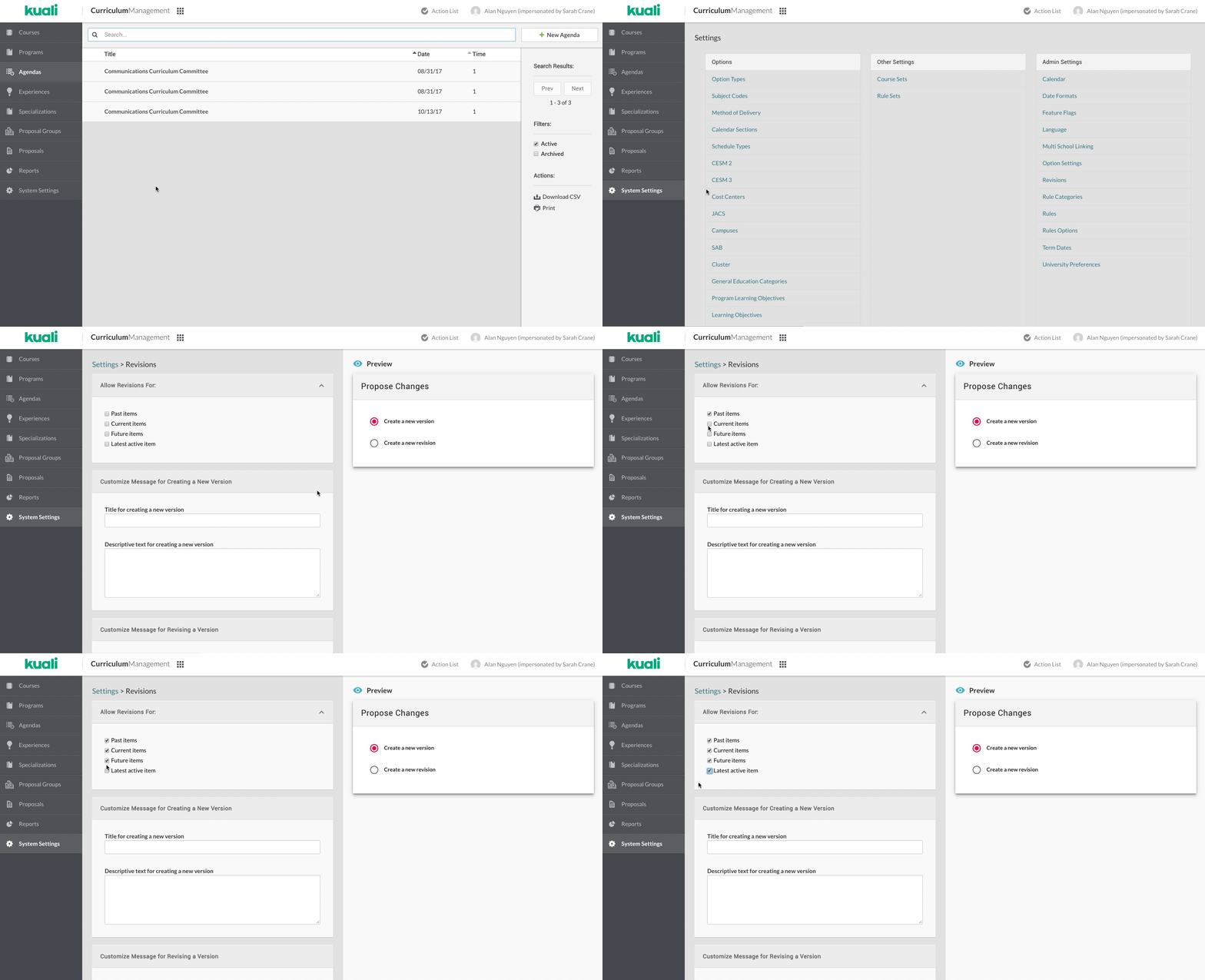
- Click System Settings in the navigation panel.
- In the Admin Settings menu, click Revisions.
- In the "Allow Revisions For:" panel select which items to allow users to revise.
- Past items: An item whose end date is before the current term.
- Current items: An item whose start date is before the current term, and whose end date has not yet passed or has not been set.
- Future items: An item whose start date is after the current term.
- Latest active item: The item with a start date furthest in the future.
- Select the appropriate checkbox(es) to enable revisions on the selected items.
- Please note: Users logged in at the time changes to the settings are taking place will need to refresh the browser to view updates.
How do I configure the Propose Changes modal?
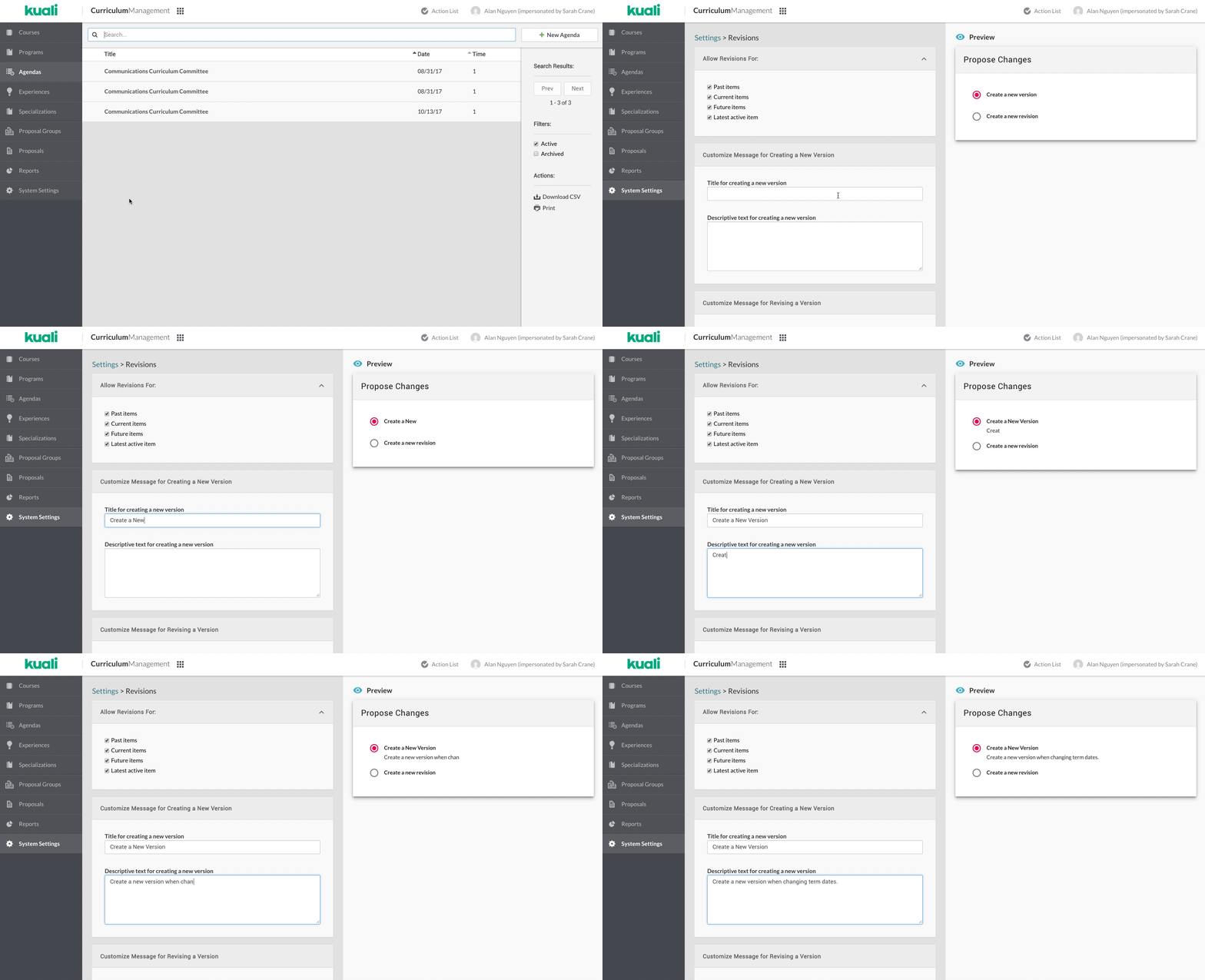
To provide greater flexibility for instructing users on when to create a new version or revision of an item, a configurable Propose Changes modal appears when users attempt to propose changes.
Please note: The modal configuration will apply when proposing changes to all item types (e.g., courses, programs, etc.). The modal will not appear if Revisions are not enabled.
- Click System Settings in the navigation panel.
- In the Admin Settings menu, click Revision Proposals.
- In the Customize Message for Creating a New Version panel, enter in the title and descriptive text that will appear when users are creating a new version.
- In the Customize Message for Revising a Version panel, enter in the title and descriptive text that will appear when users are creating a revision of a version.
- Please note: Users logged in at the time changes to the configuration are taking place will need to refresh the browser to view updates.
Using Revisions
Please note: For simplicity, this documentation assumes that revisions have been enabled on all item types. The ability to revise items depends on an institution's settings.
How do I propose a revision?
Please note: Users cannot propose revisions to proposals. (e.g., items in draft, in review, or rejected status)
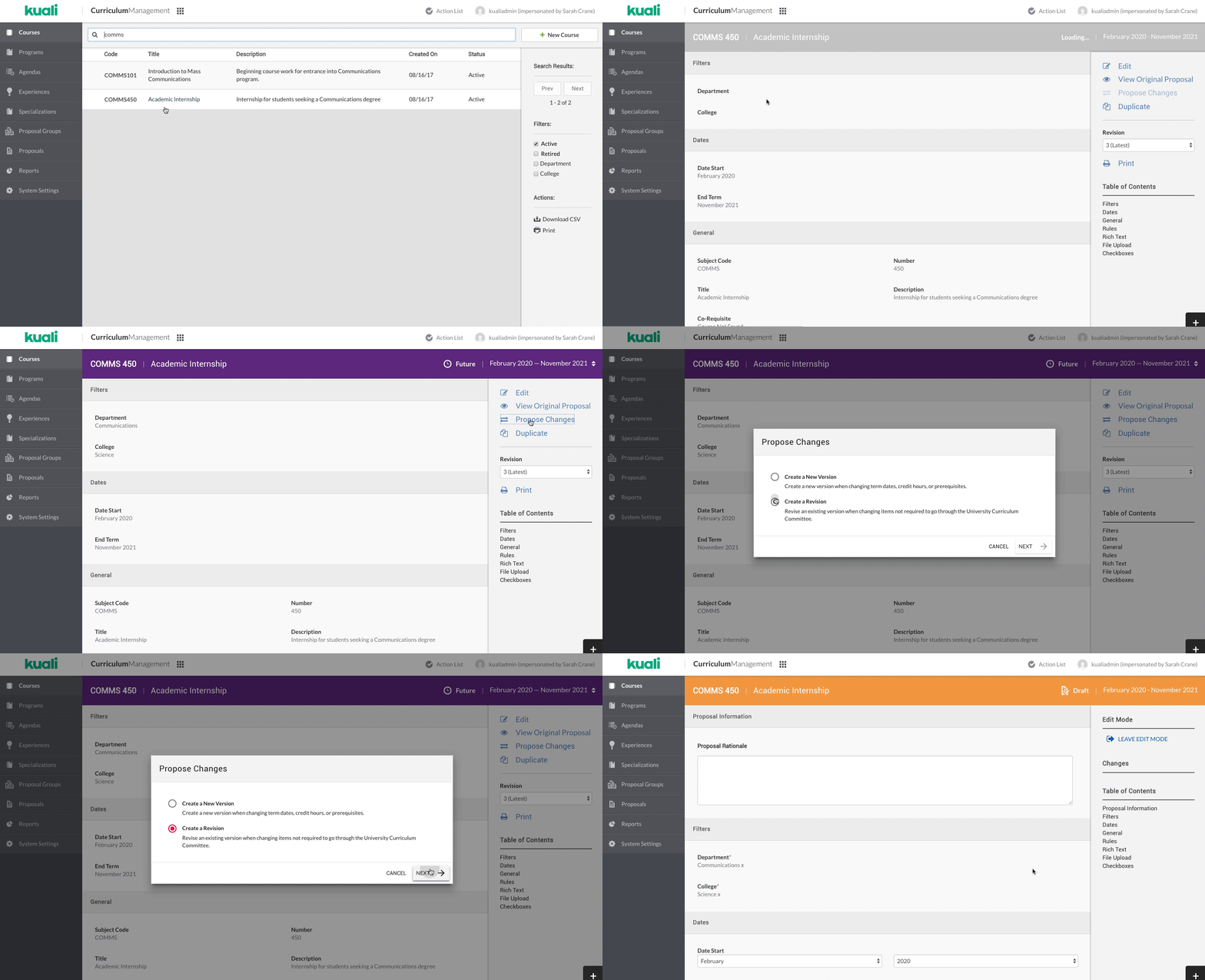
- Navigate to a version of an item (e.g., course, program, etc.)
- Click Propose Changes.
- Please note: If the item type you are in has not had revisions enabled and the item is not the latest active item, Propose Changes will appear but will be disabled.
- In the Propose Changes modal, select the appropriate option for creating a revision.
- Please note: Because the verbiage is configurable, users will need to determine the appropriate option for their institution.
- Click Next.
- Complete desired edits.
- Click Leave Edit Mode to view the revision draft.
What if I choose a revision incorrectly?
Proposals created with the wrong type (e.g., revision instead of new version) must be withdrawn and a new proposal must be created with the correct type chosen upon creation of the proposal.
How do I access revision proposals?
- Click Proposals in the navigation panel.
- Click on Proposal column header to sort by proposal type.
- Selection a revision proposal.
How do I submit a revision for approval?
- Navigate to a revision proposal.
- Click Submit For Approval in the right panel.
How will an approver know a proposal is a revision?
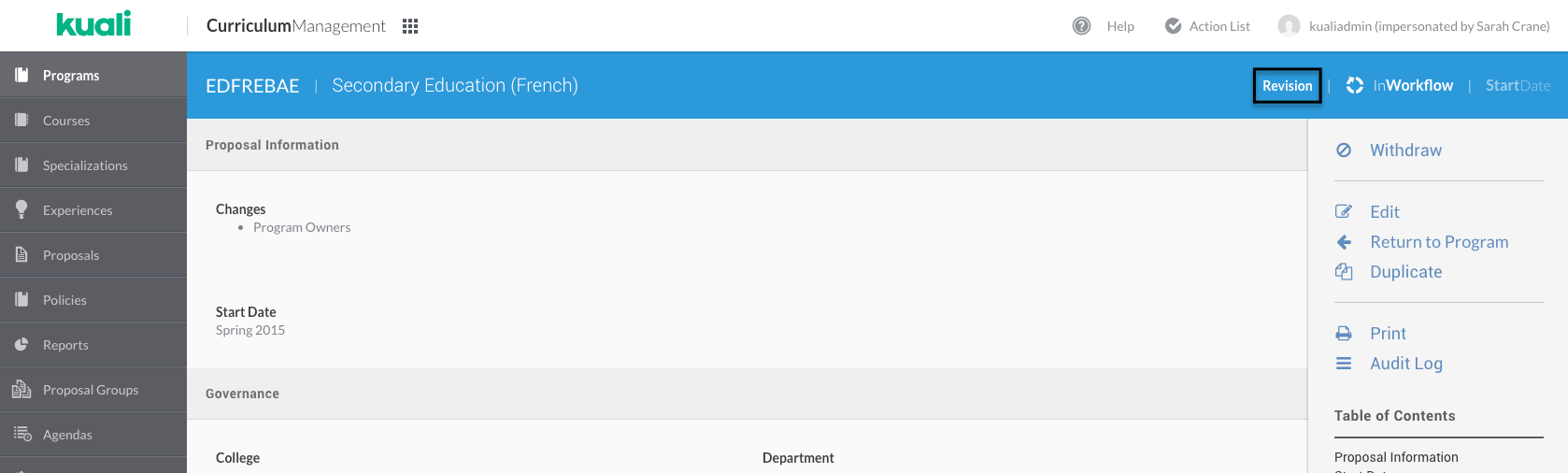
When a revision is submitted to workflow, an indicator is displayed in the header to alert the proposer that the item is a revision.
Can I submit a revision proposal and a version proposal to Workflow at the same time?
No. Only one new version or revision proposal for a single item may be in Workflow at any given time. Proposals must be approved, rejected, or withdrawn before another proposal can be submitted to Workflow.
Will revisions affect past or future approved versions?
No. Items with approved past or future versions will not be affected by a revision. For example, approving a revision will not retroactively impact a past version of a course, nor will any preexisting future versions of that course reflect the approved revision changes.
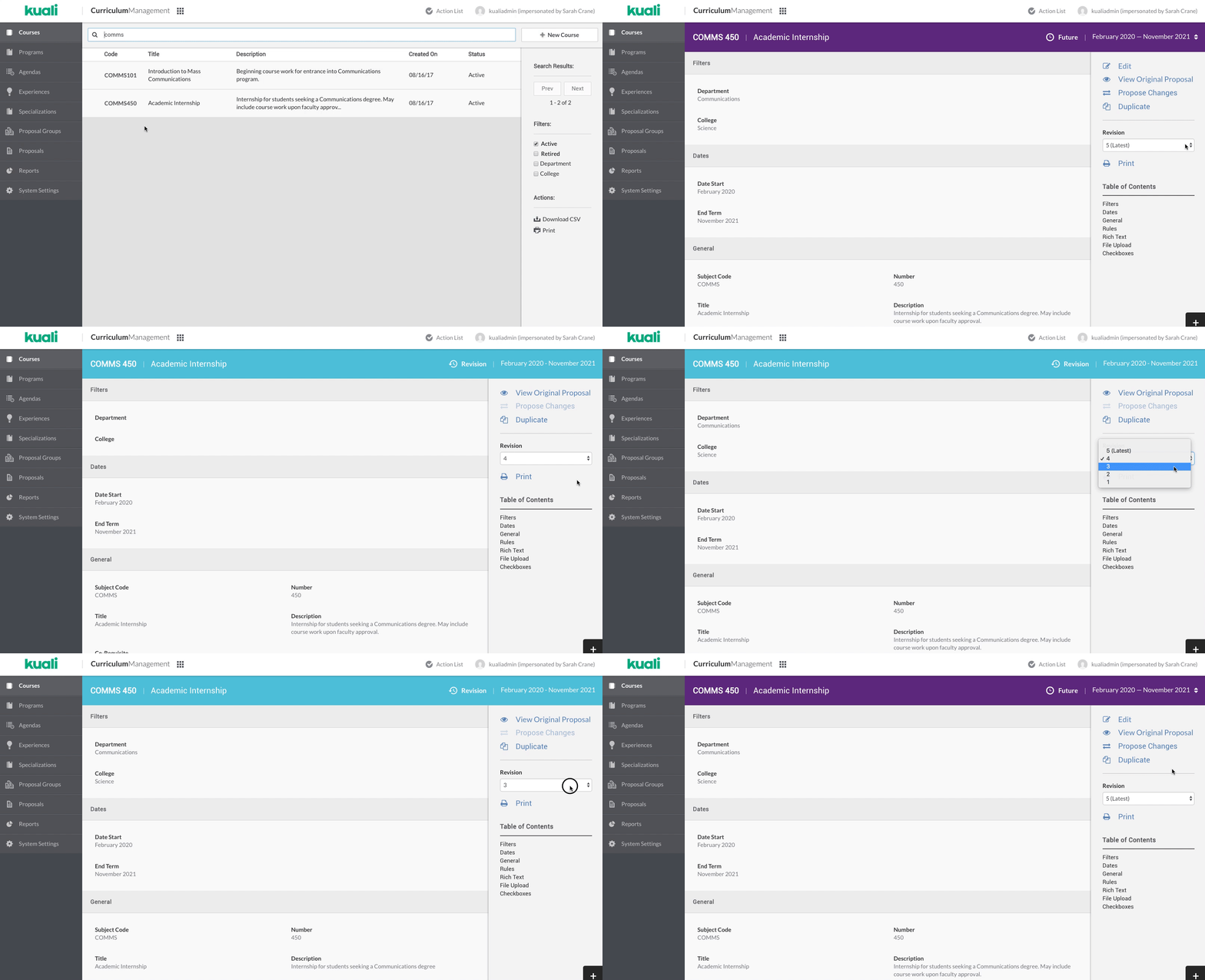
How do I access a revision?
Please note: Items that do not have any existing revisions will not display the revisions dropdown.
- Navigate to a version of an item (e.g., course, program, etc.)
- Click in the revisions dropdown in the right panel.
- Please note: By default, the latest revision will be selected.
- Select a revision.
How do I view the differences between approved revisions?
Diffing displays the differences between the selected version and the previous version.
- Select a revision in the revisions dropdown in the right panel.
- Click View Original Proposal to view the differences between the selected version and the previous revision or version.
How do I view the original proposal for a revision?
- Navigate to a revision.
- Click View Original Proposal.
Can revisions be admin edited?
Yes. All editing functionality for admins remains the same when Revisions are enabled.
Can revisions be created through the API?
Revisions can be initiated through the API by the following commands:
- POST https://yourinst.kuali.co/api/cm/proposals/programs/:ID?revision=true
- POST https://yourinst.kuali.co/api/cm/proposals/courses/:ID?revision=true
Where :ID is the ID of the item you wish to revise.
How do revisions affect reports?
All reports will function as normal when Revisions are enabled.
Comments
0 comments
Article is closed for comments.