
Overview
What is a proposal?
A proposal is created when a user is proposing to create or modify an existing item. Proposals have three main attributes associated with them: content type, proposal type and proposal status.
- Content type - refers to the curriculum associated with the proposal (e.g. course, program, etc.)
- Proposal type - refers to the type of proposal being created (e.g. new or modified curriculum)
- Proposal status - refers to the status of an approval in the approval process. These statuses are displayed on each record.
What are the proposal types?
- Create - a entirely new proposal for a content type (e.g. a new course or program)
- Modify - a new version of an existing content type (e.g. an updated program or course)
- Revise - a minor modification to an existing content type (see Revisions for more information)
What are the available proposal statuses?
- Draft - A proposal to create a new or change an existing item. Draft proposals are displayed with an orange header.

- Under Review - A proposal submitted to workflow for approval and currently under review. Proposals under review are displayed with a dark blue header.

- Approved - A proposal that has completed the approval process and has received final approval. Approved proposals are displayed with a green header.

- Denied - A proposal that has been permanently denied in the approval process and in no longer eligible for approval. Denied proposals are displayed with a dark grey header.

Who can create proposals?
Unless configured otherwise in Permissions, all users can create proposals.
Who can view proposals?
Proposals can be viewed and accessed by all users. Users may edit or delete only their own proposals unless the proposal is shared with another user. Admins can view and edit any proposal.
Proposals can be sorted by:
- Code
- Title
- Start Date
- Type (e.g. course, program)
- Proposal (e.g. create, modify)
- Status (e.g. draft, approve)
- Created On date
Proposals can be filtered by:
- Type (e.g. courses, programs, etc.)
- Status (e.g. draft, approved, under review, etc.)
Can users collaborate on a proposal?
Yes. Proposals can be shared with one or more users for easy collaboration. Sharing a proposal allows the user(s) the proposal is shared with to edit the proposal and submit for approval, if needed. When a proposal is shared, a notification will be sent to the appropriate user(s) notifying them of the action.
Who can submit a proposal for approval?
Users may submit their own proposals for approval. Admins may also submit a proposal for approval on behalf of a user.
Using Proposals
Access proposals
Search for a proposal
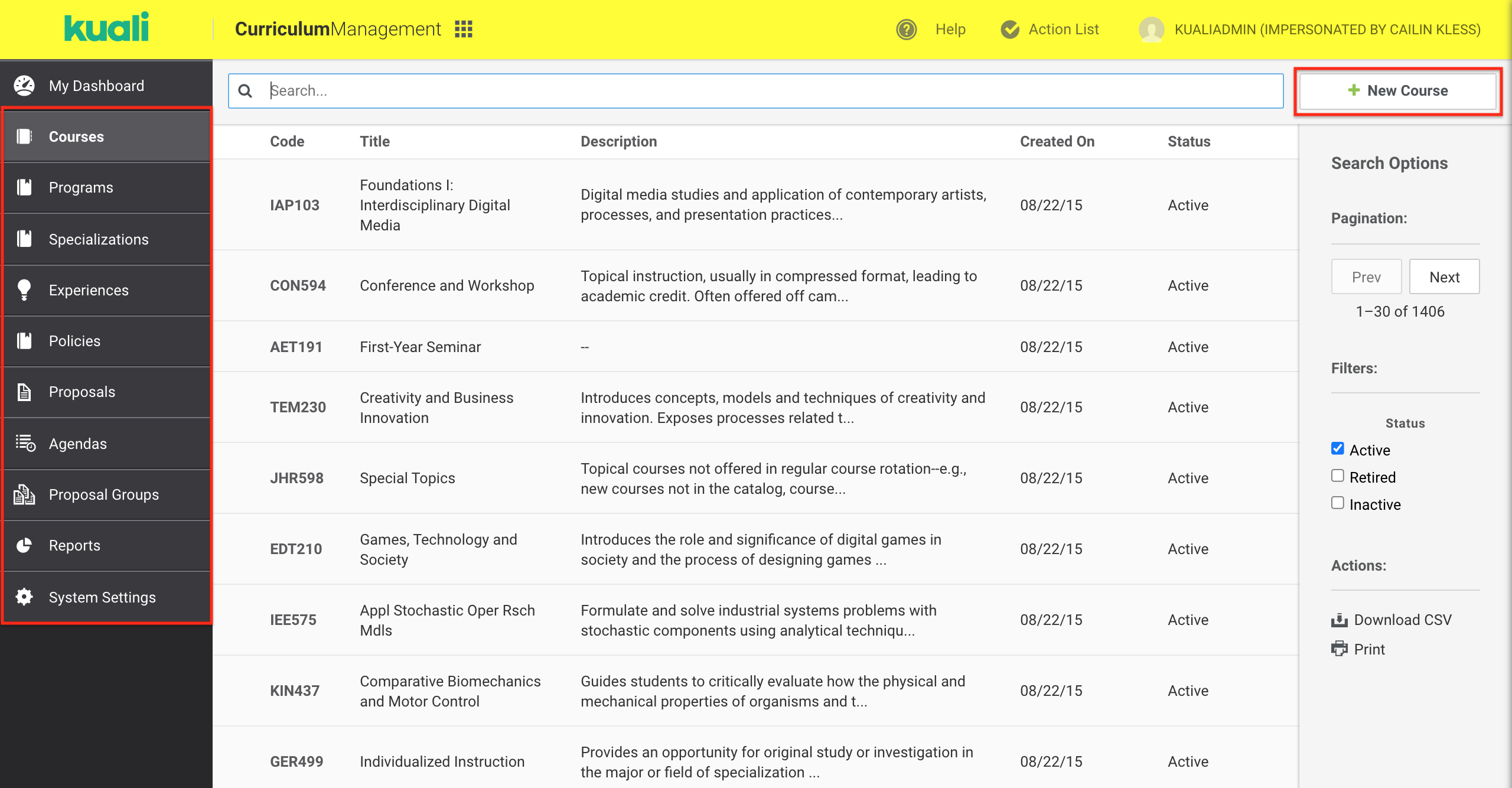
Create a proposal
Share a proposal
Unshare a proposal
Sort proposals
Filter proposals
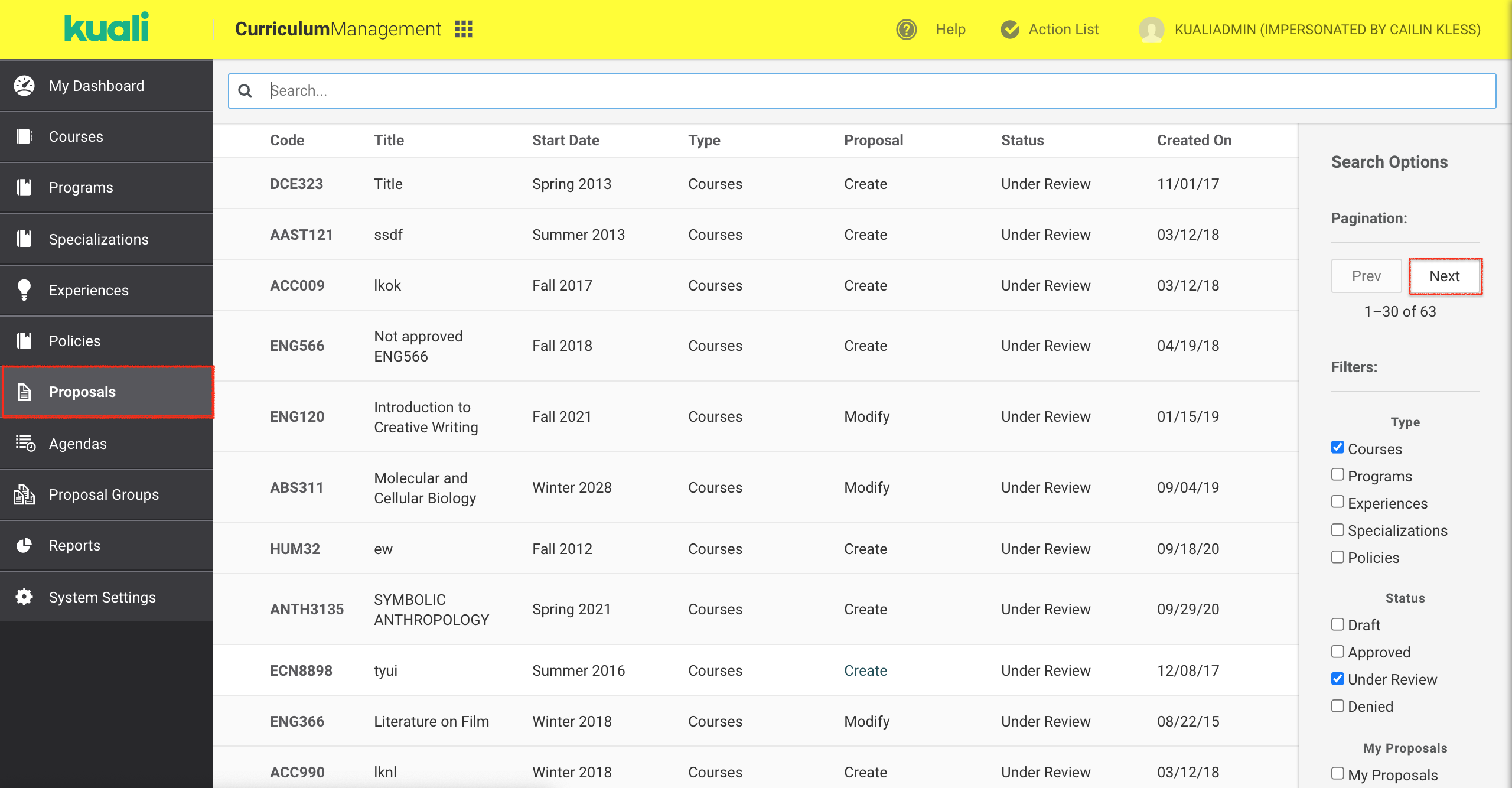
How do I access all proposals?
- Click Proposals in the navigation panel.
- Click Prev or Next to view proposals on previous or subsequent pages (if needed)
How do I create a proposal?
- Click on the title of the desired content type in the navigation panel.
- Click New.
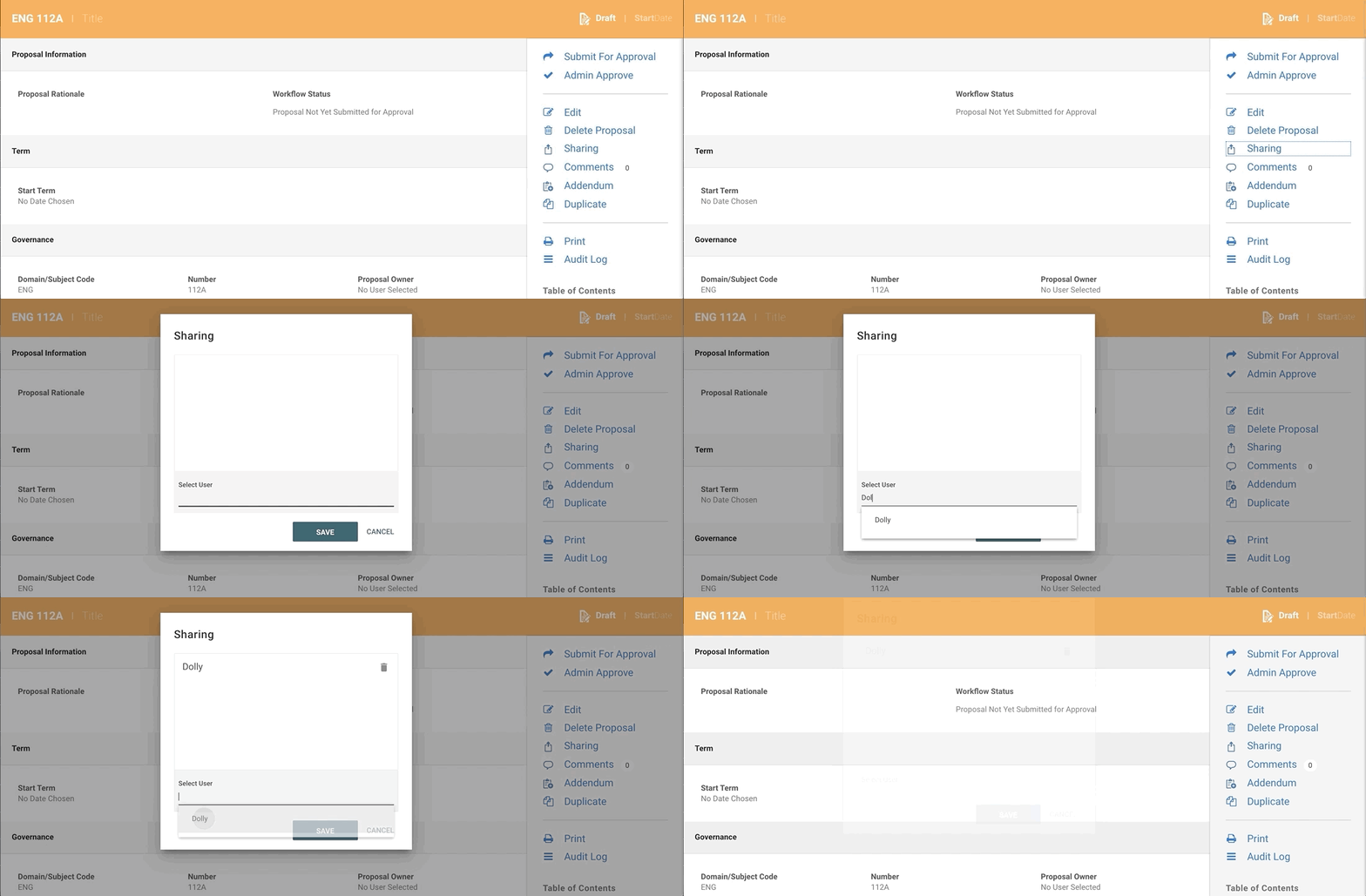
How do I share a proposal?
- Click on the title in line with the proposal to share.
- Click Sharing in the right panel.
- Enter the username(s) of the user(s) to share the proposal with.
- Click Save to confirm or Cancel to return to the previous screen.
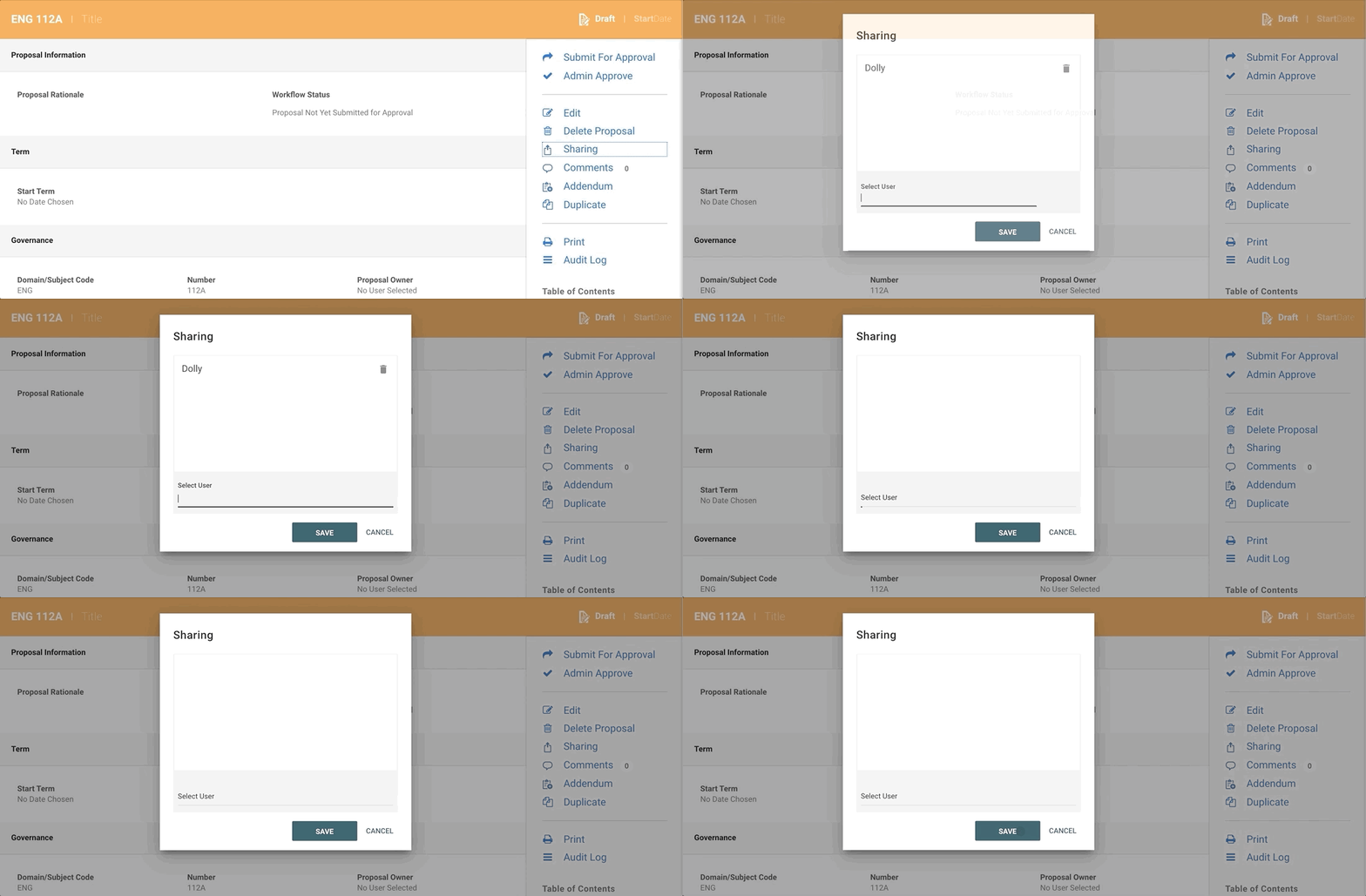
How do I unshare a proposal?
- Click on the title in line with the proposal to share.
- Click Sharing in the right panel.
- Click the trash icon in line with the the username(s) of the user(s) to unshare the proposal with.
- Click Save to confirm or Cancel to return to the previous screen.
How do I search for a proposal?
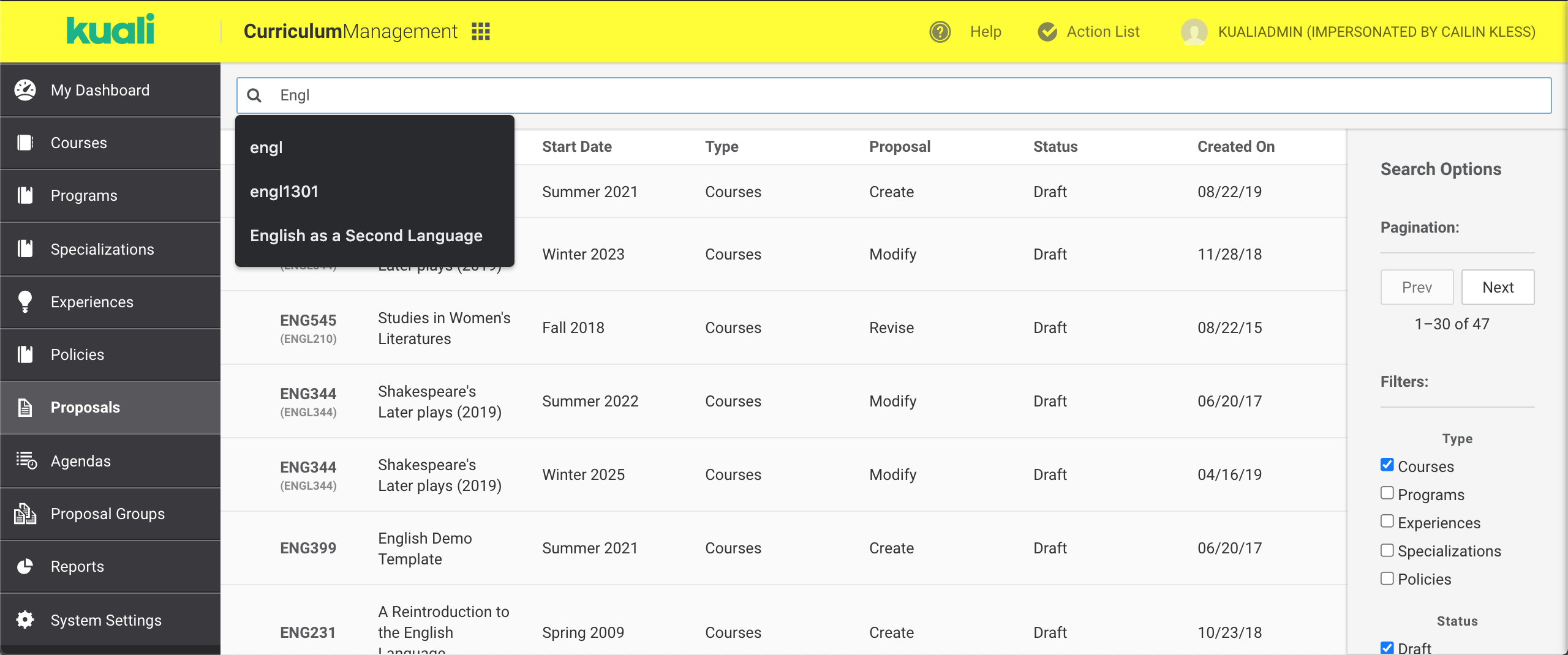
- In the proposals screen, use the search bar to search for a specific proposal.
- Please note: Proposals can be searched by subject code, number, title, and description.
How do I sort proposals?
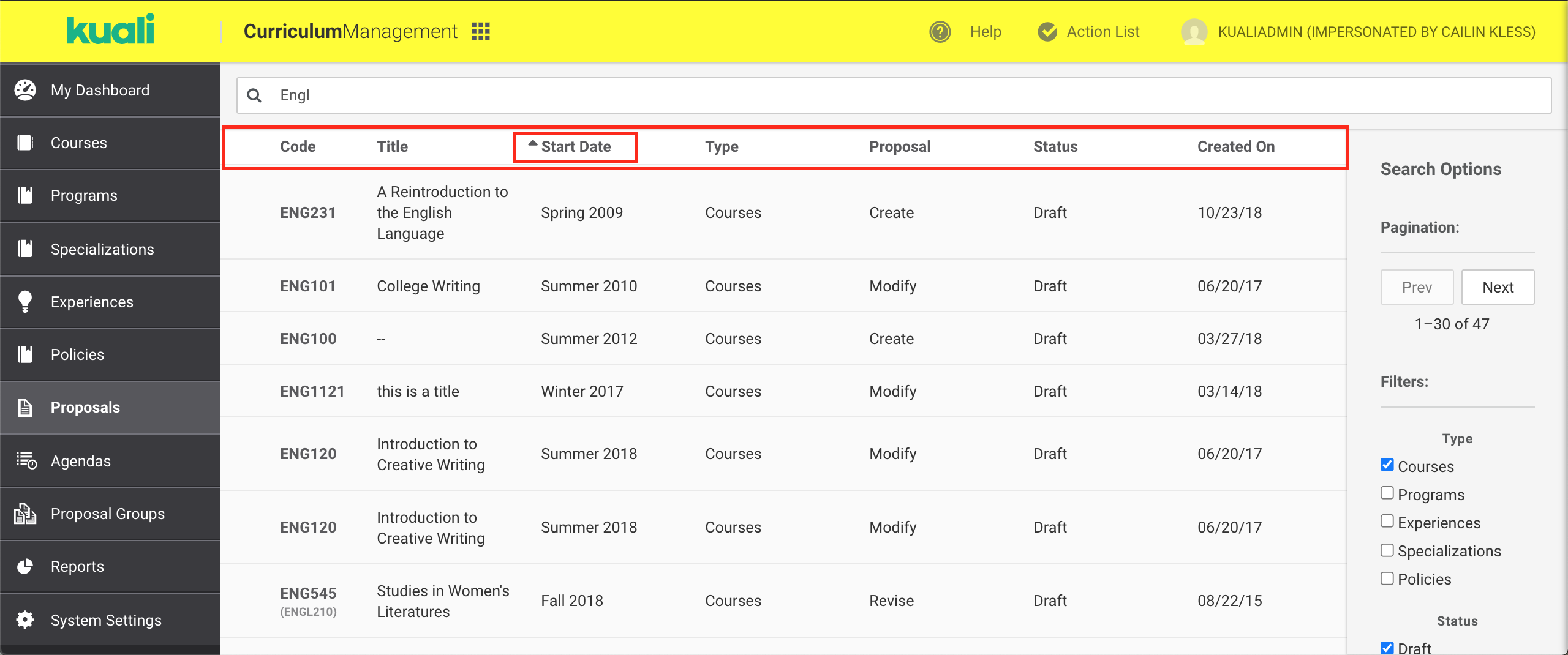
- In the proposals screen, click the title of the column you want to sort by:
How do I filter proposals?
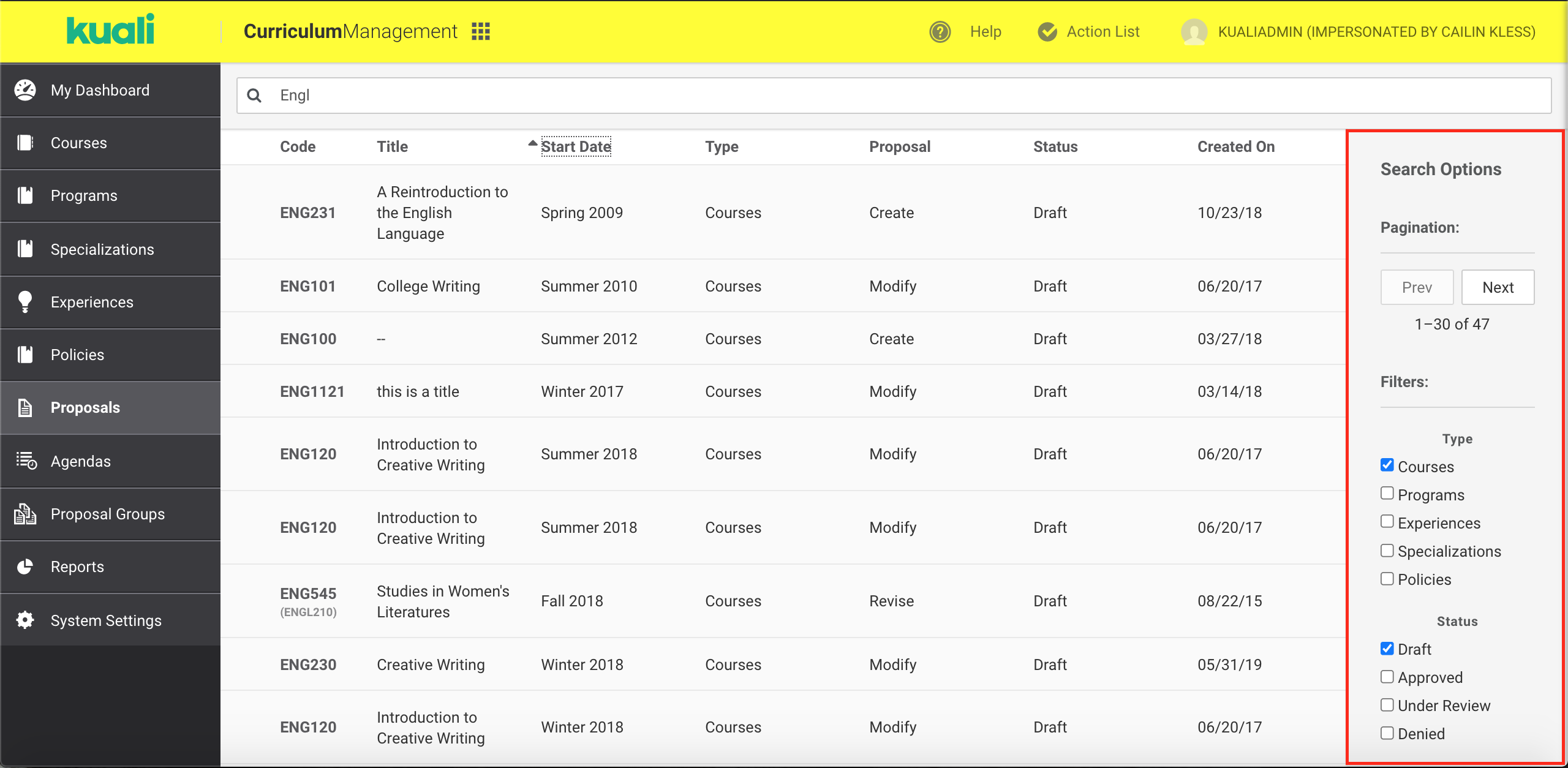
- In the proposals screen, select the checkbox(es) to filter by type, status and/or my proposals
Comments
0 comments
Please sign in to leave a comment.