
To modify the password associated with your account, you will need to access your User Settings. To access the User Settings, click on your username in the upper right corner of the page.
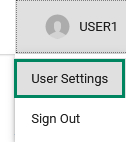
Once you have selected your account to edit, you'll be taken into the Users application. To make any changes to your account, click on the Edit button. 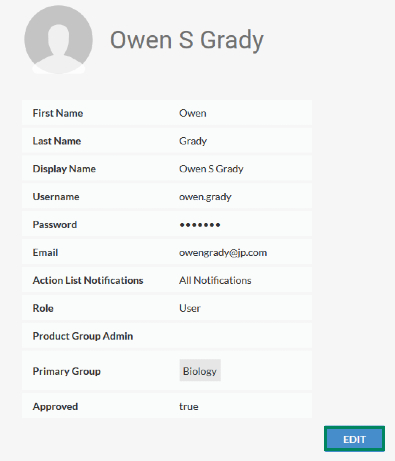
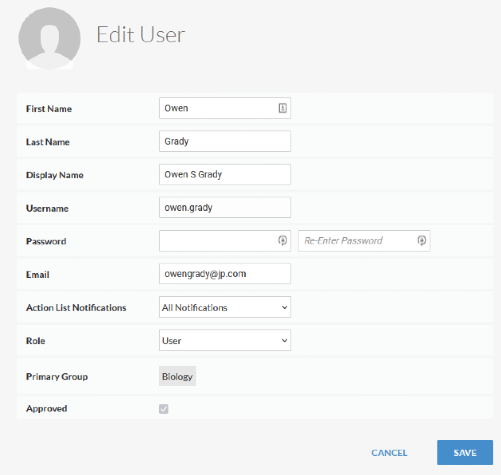
On the next screen, you can update your password by clicking into the text field, and making the necessary adjustment. For the password, you'll need to enter it a second time into the Re-Enter Password field to confirm it.

- Minimum of 8 characters
The following is not required, but strongly suggested:
- Include an uppercase letter
- Include a number
- Include a special character such as !,# or %
- Do not use a password that matches your email or username
- Try using a word or phrase, and adding additional elements. For example, p4MPhl3t
When you have finished making your changes, click the Save button at the bottom of the page to save them.
You can learn more about the options available by viewing the article for Updating your User Settings.
Comments
0 comments
Please sign in to leave a comment.