
User settings will include the attributes that are associated with a user account. By clicking on your username in the upper right corner of the page, you'll be able to access your user settings and make any relevant changes as needed.
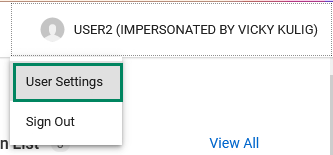
When you've selected the User Settings option, you'll be able to see your user account and all associated attributes:
- First name
- Last name
- Display name
- Username
- Password
- Action list notification settings
- Role (e.g., user, admin, or CM Admin)
- Primary group
- Approved status
Edit your User Settings
Admins
Once you have selected your account to edit, you'll be taken into the Users application. If you need to make any changes to your account, you can click on the Edit button. 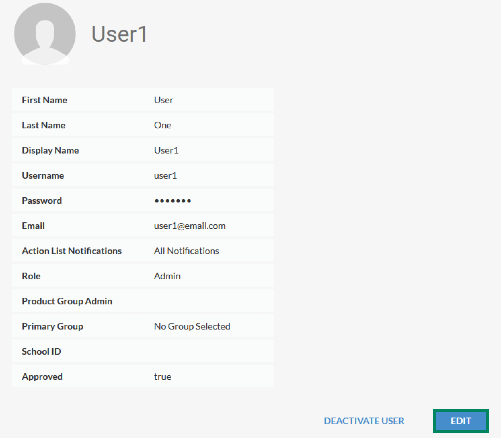
On the next screen, you'll be able to modify the fields by clicking into each text box. When you have finished making your changes, click the Save to save them, or Cancel to leave them as is.
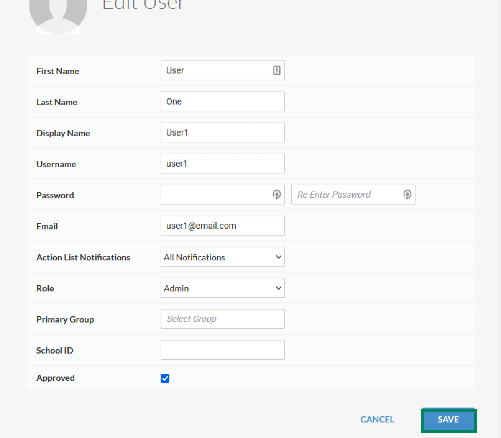
If you have an admin level account, you will be able to edit all of the attributes associated with your account.
CM Admins and Users
Once you have selected your account to edit, you'll be taken into the Users application. If you need to make any changes to your account, you can click on the Edit button. 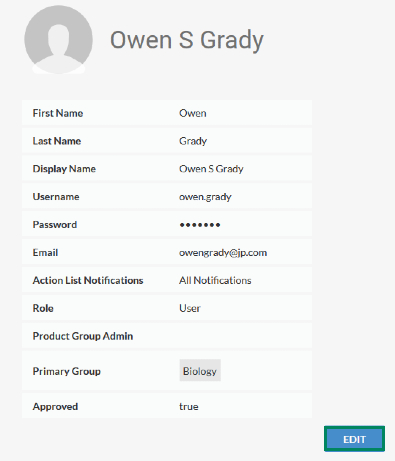
On the next screen, you'll be able to modify the fields by clicking into each text box. When you have finished making your changes, click the Save to save them, or Cancel to leave them as is.
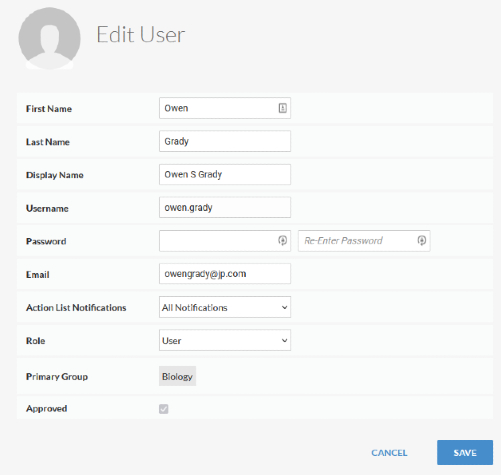
If your account is designated as a CM Admin or a user, you will only be able to edit the following attributes:
- First Name
- Last Name
- Display Name
- Password
- Action List Notifications
You'll need to reach out to your system administrator to make changes to any of the other attributes on your account.
Comments
0 comments
Article is closed for comments.