
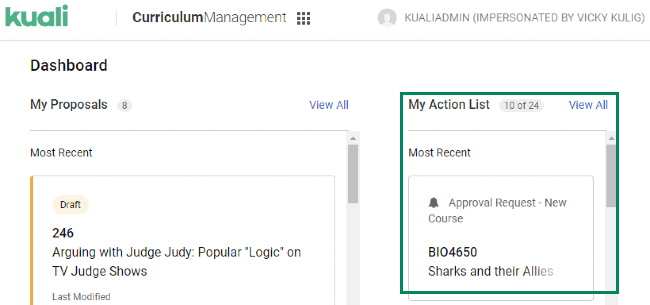
The user dashboard provides a view into the proposals you've created or that have been shared with you and any actions required of you in the approval process. From the dashboard, you are able to access drafts, review where your proposals are at within the approval process, and take action on items waiting in your Action List. The dashboard serves as the default landing page in Curriculum Management (CM), and all users have have access to their own dashboard.
Proposals
When you log into into CM, you will be greeted with a welcome message that gives a brief explanation of the dashboard. You can clear the message by clicking on the Got it! button that appears below it. 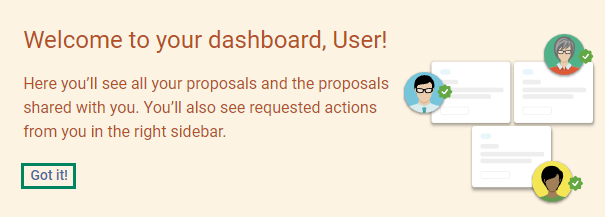
Under My Proposals, you'll find a card containing details about your proposal drafts, proposals in workflow, or those that have been sent back. These cards will provide a quick overview of your proposals, and will include:
- Status
- Subject code and Number (if applicable)
- Title
- Last modified date
- Current step in workflow(if applicable)
This view will show the 10 proposals with action taken on them most recently, and you'll see a total number of proposals with an option to View All at the top of the list.
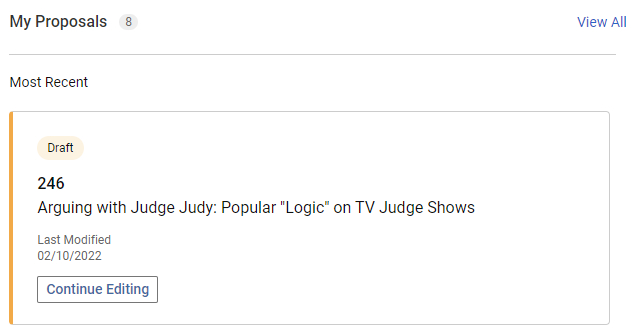
From this view, you can click on either the title, or the Continue Editing button to access the proposal. 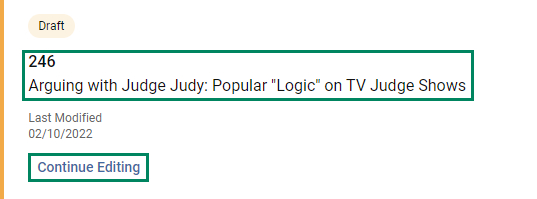
Action List
The Action List is a collection of all proposals awaiting your approval or acknowledgement. Your Action List is personalized to only those proposals relevant to you. From the Action List, you can search, sort, and access proposals awaiting your action. The Action List is visible from your dashboard, as well as a link within your navigation on the left. 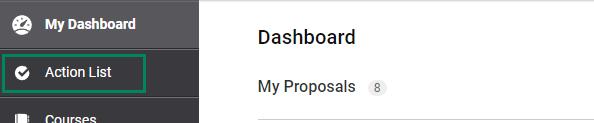
App Switcher
The App Switcher is available within the top bar next to the text Curriculum Management, and you can open it by clicking on the icon  .
.
Once selected, you'll see all available apps for you to select from. As each institution is unique, the options you see within your instance may vary from this screenshot:
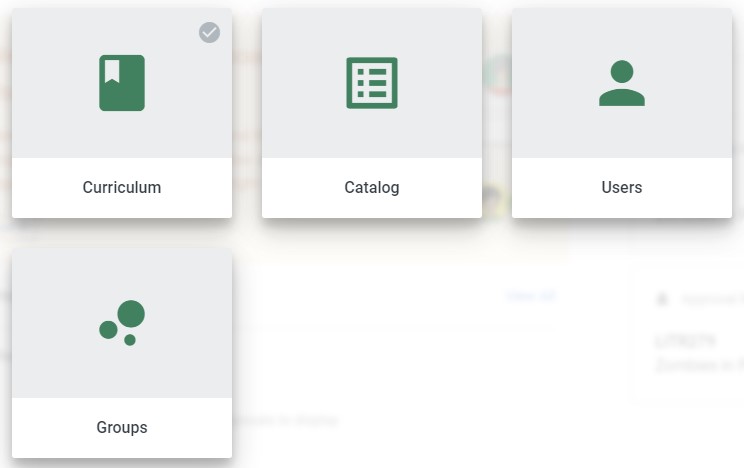
From this menu, you can select an app to access it.
Comments
0 comments
Please sign in to leave a comment.