
In addition to the articles available in the Knowledge Base, we also have a Community feature that provides our customers a forum for discussion on a variety of topics.
The Community link is available in the top right-hand corner (right next to where your username will appear!) -
- or on the main Kuali Support page where you can join the conversation.
Not only can you post comments on topics with questions and engage with the community; you can also Follow any of the topics or posts so you are automatically notified when further activity occurs, as well as voting to reflect agreement.
Topics
Within the Community's main page you will see the available topics and the recent activity. The topics will also display the number of posts and followers for each. In the Community Topics drop-down menu, you can also toggle between viewing topics or viewing all posts.
Topics are forums created by us (Kuali) for our users to post in and discuss among others. You can follow or unfollow a topic to receive a notification when activity occurs. The topics will continue to expand as we grow into the Community feature. 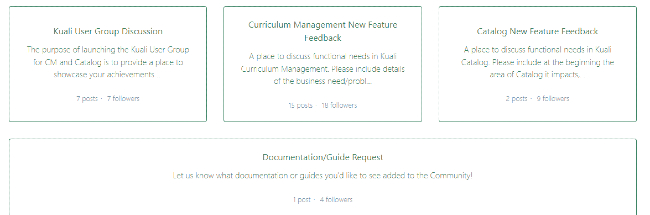
Posts
To engage in the Community, you can post on one of the available topics.
- To submit a post, click the New Post button. Please use the following guidelines when making posts:
- Title
- A summary of the issue or question. Be sure to indicate the school you are with in the title.
- Details
- Use this field to provide a full description of the issue or question. The more information you can provide, the easier it will be for other users to respond to you.
- Topic
- Use the drop-down to select the most appropriate option.
- Once your details have been entered, click Submit! Then relax and wait for comments from other community members. When you create a new topic, it will automatically be set to Follow so that you can keep up with any additional activity.
Votes and Comments
You can provide feedback on a thread via the comment option. The post will display all comments so you can see the history of the conversation. You can also vote on a given post or comment. The 'Follow' option is also available at the post level in the top righthand corner - you can click this to be notified of any additional activity.
My Activity
Selecting the drop-down by your username will provide the option to review your activity within the Community.
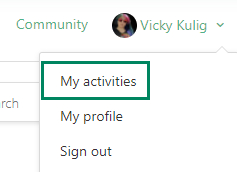
Here, you can keep track of all your submitted ticket requests, contributions to the Community, and see the items you are following. 
Comments
0 comments
Article is closed for comments.