
Anchors are used to allow the user to quickly navigate to a specified location on large pages of content. They must be placed into the content before you can create a link to them.
These are commonly used within navigational elements such as a table of contents or a directory.
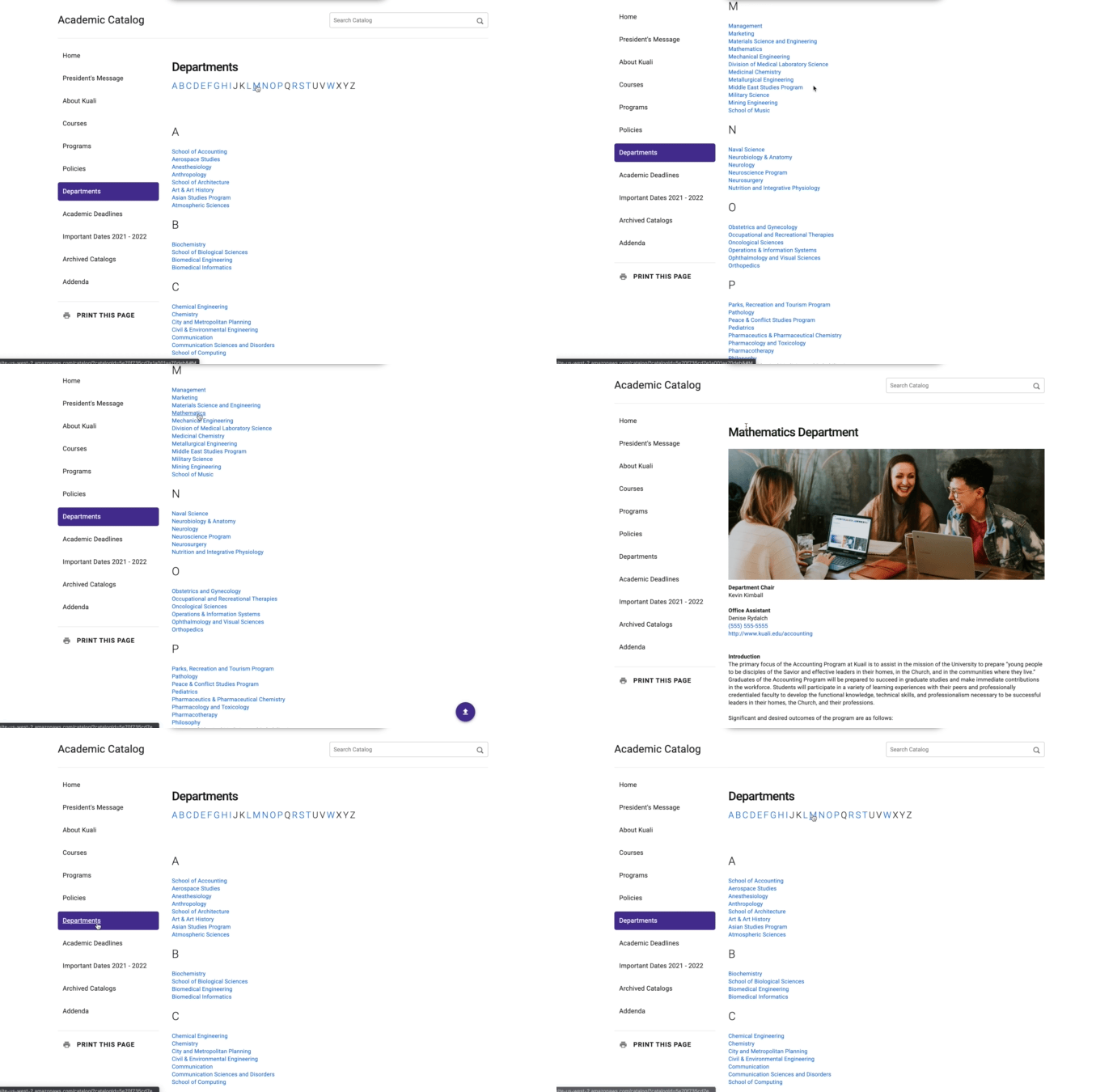
- To create a link to an anchor within the page, you will need to begin by creating a unique ID within the page content where you want the user to land.
- Within your selected Catalog, navigate to the Content Items tab.
- Click on the title of the Content Item you would like to link to, and place your cursor in the content where you would like to insert the anchor. Anchors are commonly placed next to headings within the document, but you can place them where you see fit.
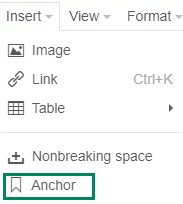
- Select the Insert menu, and then select Anchor.
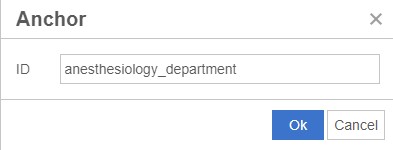
- Provide a unique ID for the anchor.
Note: A best practice for naming anchors is to use the title of your associated heading with no spaces. This makes them easier to recall for linking to later. For example, an anchor for a section titled "Anesthesiology Department" might use an anchor titled "anesthesiology_department."
Note: If you are comfortable working directly with HTML, you can add the anchor into the Source Code instead.
- Once added, a small anchor icon will appear next to the item indicating it has been set.
- Once an anchor has been set, you can create a link to it from another section of this page.
- Enter your cursor in the content where you would like to place the link, and click on the insert/edit link icon (
 ).
).
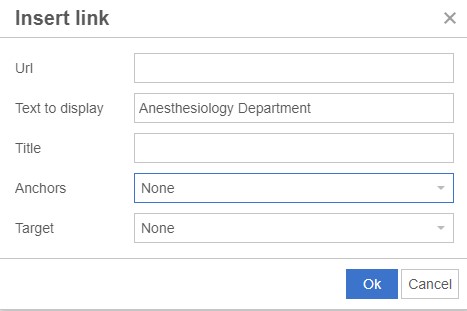
- Leave the URL field empty.
- The Text to Display field can be used to enter text that will display rather than the URL. This allows you to have links that are comfortably embedded within natural language.
- The Title field offers advisory information about the URL element itself, similar to alt text for an image. It will be visible only if the user hovers over the URL.
- The Anchors field is used to select the previously established Anchor. Once selected, the URL field will also update.
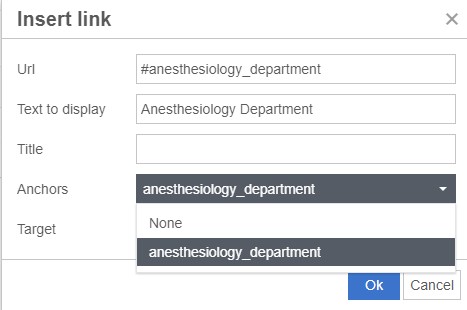
- The Target field is used to determine if you would like the user to open in a new window/tab, or the same window when clicked.
Note: A general recommendation would be to leave it set to 'none' and allow the end user to choose how it should behave. Some users may have their browser set to behave in a specific way when links are clicked, or they may use the center mouse button to open a window/tab based on their preferences.
- Once the relevant fields have been filled in, click the Ok button to save the link.
- The Content Item will save automatically as you work, and the changes will be live immediately on the catalog.
Note: These relative links will not function in the PDF version of the catalog.
Comments
1 comment
This is helpful information - Is it possible to link to an anchor on a different page?
Thanks!
Matt
Please sign in to leave a comment.